Tech Tidbit: Change iPad Camera Capture Format

Hello Everyone!

This is the first #TechTidbit (previously known by the more formal “technological tidbworking from homeit” phrase) in a very long time. I’ve shortened the phrasing from 7 to 3 syllables, because it just sounds catchy-er to say “tech tidbit.” Shorthand is a focus these days, with all the acronyms, hashtags, abbreviations. I digress.

I’m working today on some #BookVideosEDU for next year’s first week of school library (that’s a whole process I’ll explain later, which is pretty awesome, if I do say so myself ๐Ÿ˜‰). I have the photos of the books taken with my school iPad and was trying to import them to Google Slides so each photo is on its own slide. Out of 25 photos for a particular picture book, only three actually imported using the Slides Toolbox add-on in Google Slides.

The three photos that did import were not original images. I had edited them some in a specific way, so the original image was replaced. When looking at the three compared to the other 22 photos for the book, I noticed a difference between formats: three were in the typical JPEG file format, while the rest were .heic (which I learned is a high efficiency format for IOS).

I found that JPEGmini has a conversion website that will change the HEIC to JPEG format for five images at a time online for free without keeping any of the images. I downloaded a 30-day free trial of the software so I can convert 200 images in bulk, so I’m now able to change the photos I’ve already taken for three other picture books a book at a time, instead of only five images at a time. Much faster!

So, having fixed the problem I was having with one book and proactively fixing all the photos for the next three books, I was thinking:

There has to be a way to change what format my iPad takes photos in, so this isn’t a chronic thing of needing to convert photos all the time.

Turns out, with a little Googling, I found what I needed deep within the labyrinth know as the Settings of an iPad! ๐Ÿ˜€

#TechTidbit: Change iPad Camera Capture Format

  1. Go to Settings on the iPad; scroll to the “Camera” category.
  2. Choose the “Formats” tab.
  3. Change the “Camera Capture” format from
    “High Efficiency” to “Most Compatible”
  4. Close Settings. It’s often a good idea to restart the iPad to make sure the change took effect.

Note: it seems you don’t get to know what format a photo on the iPad is in until you try to upload it somewhere, like into Google Drive where file format extensionsย are visible.

Here’s a screenshot of what the above steps are talking about:

Note (again): The changing of the default to JPEG format for photos taken with the camera does not extend to screenshots taken on the iPad; they’ll be in PNG format; don’t ask me why.

Hope this #TechTidbit is useful!

Happy RLGing! ๐Ÿ“š๐Ÿค”๐Ÿฆ‹

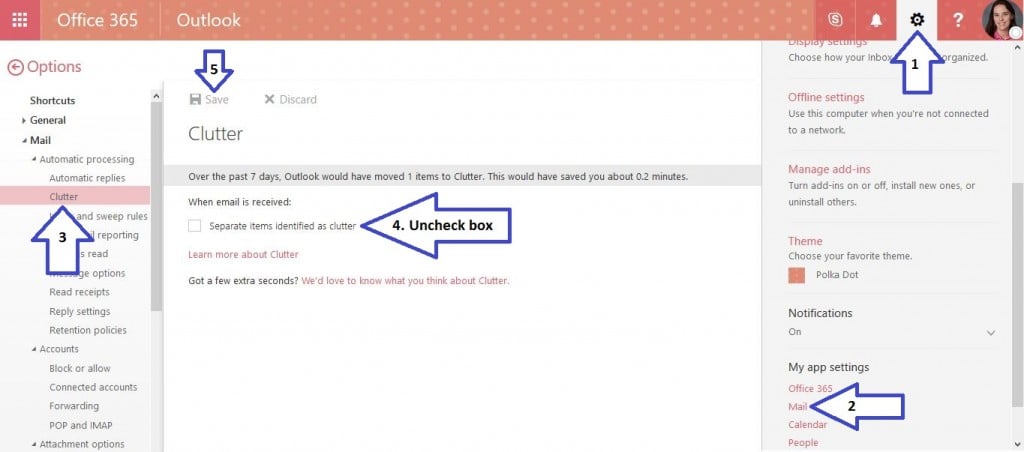
Technological Tidbit: Send Outlook Emails to Special Folder on Arrival

Hello Everyone,

I like to free up my Outlook account’s inbox by having emails I know I can’t read every day go to a special folder automatically. For example, I love reading all the questions and answers on my state’s librarian email listserv; I can’t read them all every day, and there are around 20 or 30 emails some days…. so… I have learned to have Outlook send emails from specific senders (that is, everything coming from the listserv) sent on arrival to a special folder.

I made a help sheet to explain the process (here)!

Enthusiastically,

Ms. Tyler

Technological Tidbit: Turn Off Outlook “Focused Inbox”

Hello Everyone,

Don’t you dislike finding an important email on your Outlook account has gone to the “Other” inbox without you knowing it?

To fix this problem, I have made a help sheet to show how to turn off the “Focused Inbox” fuction recently added to Outlook. It’s available here.

Enthusiastically,

Ms. Tyler

Technological Tidbit: Mini-Books in MS Publisher

Hello Everyone,

As part of my educational technology integration class this summer, I learned how to make 8-page mini-books in Microsoft Publisher.

Please watch the accompanying how-to video (below) or take a look at the help sheet (here)!

As the culminating project for the course, I was required to present a professional development to colleagues on a class topic, and I chose the process of creating mini-books in Publisher.

The professional development plan with its implementation reflection is here.

Enthusiastically,

Ms. Tyler

Technological Tidbit: QR Codes

Hello Everyone,

Do you enjoy scanning the QR codes that just keep randomly popping out in grocery stores and restaurants? Has a colleague mentioned using QR codes in an activity with students, and you’re hesitant to ask how he or she made them?

Today’s “tech tidbit” gives you simple steps to making a QR code!

Follow the instructions of the help sheet (available here)!

Enthusiastically,

Ms. Tyler

Technological Tidbit: YouTube Video Full-Screen Links

Hello Everyone,

Would you like to have students access a YouTube video that is grade-level appropriate and enhances your lesson or unit content yet are afraid of what little eyes might see as vulgar comments or bizarre suggested sidebar videos?

No longer do we have to fear YouTube as an educationally inappropriate resource when we know it contains or we upload appropriate, valuable videos.

The answer lies in making full-screen links to the videos we want to share with students so there is no way they can see the comments or suggested sidebar videos.

How do we accomplish this? Take a look at the “Make a YouTube Full-Screen Link” help sheet I uploaded in Google Drive: http://tinyurl.com/readlearngrowtechtibits.

Enthusiastically,

Ms. Tyler

Technological Tidbit: How to Turn a Google Form “Off”

Hello Everyone,

It is difficult to believe that Thanksgiving is next week, the elementary school year is almost half over, and I am two semesters away from my Master of Science in Library Media Education!

This semester I took an educational technology class that made me administer a Google Form to students as a pre- and post-assessment. Since implementation is over, I wanted to close the Form so students could not continue to answer the content-specific questions.

After reading an article retrieved through trusty Google, I have created a help sheet to answer the question: “How do I turn off a Google Form?”

The help sheet is available at this link or by going to the Read + Learn = Grow! Google Drive and clicking on the “Technological Tidbits” folder.

Enthusiastically,

Ms. Tyler

Remind101 has a new name and is more awesome than ever!

Hello Everyone,

I just wanted to generally review the wonderful communication website/smart phone app called “Remind.” It used to be called “Remind101” and was a free way for teachers to text message students and/or parents and caregivers reminders or announcements about various class happenings, like things to bring on certain days or field trip permission slip due dates.

The wonderful aspect about this from of electronic communication is that it is secure, that is completely phone number-less. Teachers sign into their accounts using an email address, and students and/or parents and caregivers sign up through an access code that does not make their phone numbers visible.

Just being free and secure sound great, you say? Well, now the latest version Remind lets teachers set up office hours on certain days and specific time frames, where the teachers can “chat” with specific subscribers, and the subscribers can, in turn, initiate personal text message conversations with the teachers. This new “Chat” feature allows a student to text his or her teacher a question about an assignment and have a one-on-one discussion. If a student texts outside of the office hours, he or she receive a message which reminds him or her of the teacher’s Remind office hours.

Incidentally, it can be used effectively on Android and iOS devices.

Check out the features of Remind by exploring this introductory page: https://www.remind.com/learn-more.

Enthusiastically,

Ms. Tyler